

FAQ
Q.1 I do not understand how to setup Google Calendar Synchronization
Q.2 An appointment that was created in SaiSuke would not be synchronized to Google Calendar.
Q.3 Can I set a reminder?
Q.4 Can I sync with Microsoft Outlook?
Q.5 Can I sync with iCal?
Q.6 I can't change the color of appointment
Q.7 Can I change the synchronize period?
Q.8 Is there a feature to jump to a date?
Q.9 Do you distribute holiday data for SaiSuke?
Q.10 I get crash repeatedly after updated SaiSuke
Q.11 I get crash when I try to create an appointment after updated SaiSuke and/or iPhone OS
Q.12 I get crash repeatedly even initialize setting data or reboot iPhone.
Q.13 Sync with Google Calendar takes more than hours or never finish.
Q.14 What is the difference between Full version and Free version?
Q.15 I get an error message, "Error Code:403" during sync.
Q.16 I get a message, "Unexpected Termination" when SaiSuke starts.
Q.17 How can I migrate the appointment data in Free version to Full version?
Q.18 How can I put toolbar fixed at bottom of the screen like before V1.15?
Q.19 Birthday appears off by one day.
Q.20 Initial view mode and Initial selected day are not corrected when I start SaiSuke.
Q.21 Old appointments are disappearing
Q.22 How can I use local backup/restore?
Q.23 SaiSuke Free v1.76 does not work
I do not understand how to setup Google Calendar Synchronization
Please see Google Sync Setting.
An appointment that was created in SaiSuke would not be synchronized to Google Calendar.
Select Calendar Update Setting in Google Sync Setting.
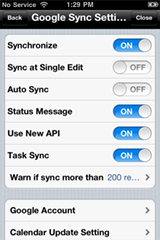
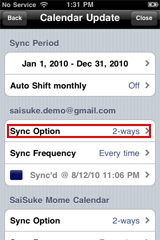
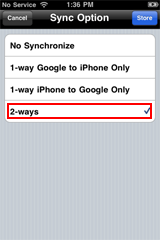
Set 2-ways or 1-way iPhone to Google Only in Sync Option.
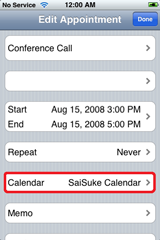
Calendar in Appointment should be Google Calendar. If SaiSuke Calendar is selected like image below, the Appointment will not synchronize to Google Calendar.
Can I set a reminder?
No, you cannot. iPhone OS does not provide an application to setup a reminder.
However, we can use notification mechanism in Google Calendar. If you setup SMS notification in Google Calendar, you can setup a reminder in an appointment. Then you will receive SMS from Google Server at the time. Please keep in your mind that the SMS message is not guarantied to delivered at the time.
→Yes, you can ( ver1.30~)
Can I sync with Microsoft Outlook?
Yes, you can do it via iTunes.(ver 1.30 and later)
Turn on the Sync Outlook in iTunes. To enable this option on iTunes, iCloud Calendar sync option on iPhone must be OFF.
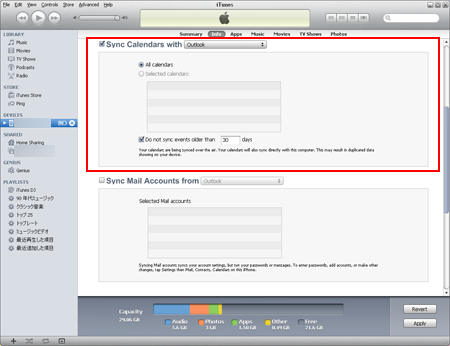
Google has discontinued the Google Calendar Sync support.
Can I sync with iCal?
Yes, you can do it via iTunes.(ver 1.30 and later)
Turn on the Sync iCal Calendars in iTunes. To enable this option on iTunes, iCloud Calendar sync option on iPhone must be OFF.

Also, you can. You can setup CalDAV protocol with iCal to synchronize between iCal and Google Calendar. Once the appointments in iCal are uploaded to Google Calendar, you can access to the appointments in SaiSuke.
✻As Apple does not disclose the API information to manipulate the Calendar Application in iPhone, SaiSuke does not support direct synchronization.
I can't change the color of appointment
An appointment that in a Google Calendar is displayed with the color of the Google Calendar. You cannot change it in SaiSuke.
You can change the color of appointment when you select SaiSuke native calendar, 'SaiSuke Calendar'.
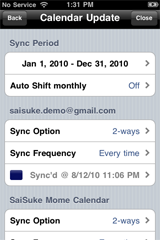
Can I change the synchronize period?
At Version1.00, the period is fixed with the current visible one month.
Version1.01 and later has an option to specify the period.
Also modified the sync algorithm to update only the appointments that were updated after the last sync operation. This change contributes to reduce data traffic and time to sync.
Once you changed the sync period, the first sync process will check all of the appointments in the period, so that the process may take up to few minutes to complete. Please make sure the radio strength and battery are enough to complete the process before to start the first sync.

Is there a feature to jump to a date?
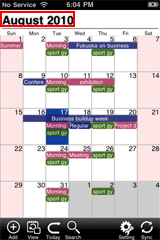
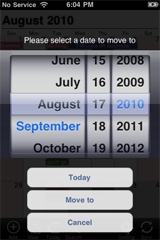
Version 1.01 and later, Yes, Touch the title area to open the dialog. Select the desired date to jump and push Move to button.
Do you distribute holiday data for SaiSuke?
There are Public Holiday Calendars for various countries in Google Calendar. After you add those Holiday Calendars to your calendar, they can be synchronized in SaiSuke as well.
I get crash repeatedly after updated SaiSuke
Please turn off iPhone and reboot. Here is the steps,
- Return to Home screen of iPhone
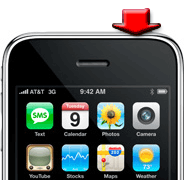
- Push sleep button on top and hold for few seconds
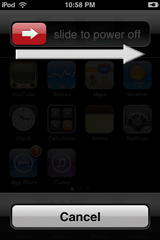
- Slide the switch on confirmation view to continue to power off
- Turn your iPhone on
- Launch SaiSuke
I get crash when I try to create an appointment after updated SaiSuke and/or iPhone OS
Please initialize SaiSuke setting
- Select 'Setting' in Home screen, then Select 'SaiSuke'

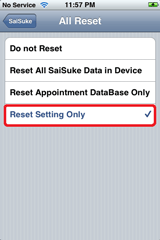
- Select 'All Reset' and 'Reset Setting Only'
- Return to iPhone Home screen
- Launch SaiSuke
- Select 'Reset' at the confirmation
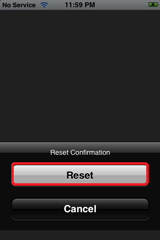
Check the create new appointment is working, then go to SaiSuke Setting from Home screen to setup user setting.
I get crash repeatedly even initialize setting data or reboot iPhone.
Please re-install SaiSuke with following steps.
1. Don't connect iPhone/iPod Touch to PC/Mac. If connected, please disconnect.
2. Connect iPhone/iPod Touch to WiFi or 3G network.
3.Touch SaiSuke icon for several seconds until icon starts shaking.
4. Touch x button at the upper left of SaiSuke icon and remove it.
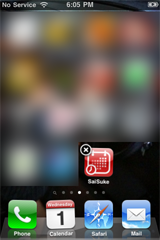
5. Confirm SaiSuke icon is removed from iPhone/iPod Touch screen.
6.Restart iPhone/iPod Touch. Please see A.10.
(Very important. Certainly please do this operation.)
7. Touch App Store icon and select "Search" Tab.
8. Input "SaiSuke" and select it and install.
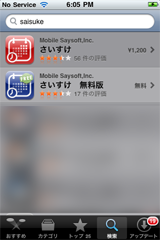
9. You should login with Apple ID which used for buying SaiSuke to avoid double charge for download.
Sync with Google Calendar takes more than hours or never finish.
Some times, Google calendar does not response to the request from out side of Google Server so that the sync will be blocked by one of the calendars.
If you setup multiple Google Calendars to sync, please try to enable only one calendar to sync and disable all the other calendars for test purpose.
If you identify the calendar that blocking the sync, please leave it sync disabled for a while and try it again later.
What is the difference between Full version and Free version?
SaiSuke Full version provides following features in addition to the features of Free version
- 2-Way Synchronization with Google Calendar
- Synchronization with multiple Google Calendars by single sync operation
- Flexibility of Synchronization period with Google Calendars
- Create, Edit and Delete appointments(include repeat appointment) in Google Calendar
I get an error message, "Error Code:403" during sync.
The meaning of the error is failing to authenticate the account access.
- Please double check the login ID and password. The login ID must be the entire Gmail address, such as "XXXXX@gmail.com".
- If the ID and password are correct, please initialize the setting with the steps at Q.11
I get a message, "Unexpected Termination" when SaiSuke starts.
This message appears when SaiSuke detects force termination of SaiSuke.
If you terminate SaiSuke with "press & hold" Home Button, which is "force termination of an application", this is a cause of the message. Please use simple one time press of Home Button to terminate SaiSuke instead.
How can I migrate the appointment data in Free version to Full version?
Please copy "SaiSukeAppo.db" file from Free version to Full version using File Sharing of iTunes.
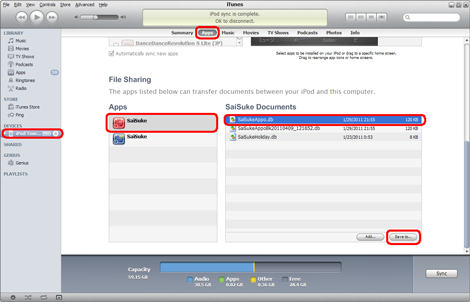
Firstly please make sure to shutdown SaiSuke on iPhone. You can shutdown SaiSuke at "Shutdown SaiSuke" in Maintenance menu
Please save "SaiSukeAppo.db" file in Free version(Blue icon) to a folder on PC or Mac
Then add the "SaiSukeAppo.db" file to Full version(Red icon)
How can I put toolbar fixed at bottom of the screen like before V1.15?
Select "Fixes at the bottom" in Edit Tool Bar Button.
Birthday appears off by one day.
It's caused by sync between Outlook and iPhone Calendar.
Please see Apple Support.
Initial view mode and Initial selected day are not corrected when I start SaiSuke.
iOS4.0 supports multi task. SaiSuke also supports multi task and runs at background if memory is enough. So to start SaiSuke is to change Saisuke at background to foreground running. You can set the behavior in General Setting - Behavior at Foreground.
If you want to initialize SaiSuke always when you starts, select "Act as launch immediately".
Old appointments are disappearing
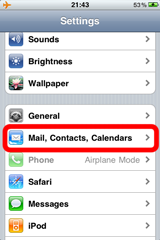
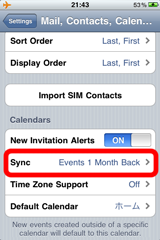
Please check sync option of iOS default Calendar. The default setting for sync period is "Events 1 Month Back". Please select your preferred period.
How can I use local backup/restore?
Connect your iPhone to iTunes and open File Share screen
"SaiSukeAppo.db" is the appointment database file for SaiSuke.
To backup, please save the file to a folder on PC or Mac.
To restore a backup, firstly please make sure to shutdown SaiSuke on iPhone. You can shutdown SaiSuke at "Shutdown SaiSuke" in Maintenance menu
Please add "SaiSukeAppo.db" file previously saved on PC or Mac
Note: Appointments that created with iOS Calendar are not in "SaiSukeAppo.db" file. Therefore you cannot backup/restore appointments in iOS Calendar
SaiSuke Free v1.76 does not work
v1.76 has an error with iOS7 iPhone if turn OFF the privacy setting for Reminders access. To avoid the error,please turn ON the privacy setting for Calendars and Reminders.
Update version that has the fix for this issue is in review by Apple. It will be available shortly.