

Buttons on ToolBar
There are two style of Tool Bar. Can be select with setting.

Flexible Tool Bar mode

Fixed Tool Bar mode
 |
Add | Create New Appointment Quick Create New Appointment Paste an Appointment |
 |
View Mode | Show/Hide View Mode Select buttons |
 |
Today | Move to Today |
 |
Search | Search Appointment |
 |
Setting |
Calendar Show/Hide select Google Sync Setting Google Calendar Update Setting Backup Restore General Setting Views Setting Input Setting Select Timezone Set/Remove Holiday Edit History words Edit Tool Bar buttons Color Setting About SaiSuke |
 |
Sync | Synchronize appointment with Google Calendars |
Create, Paste an Appointment
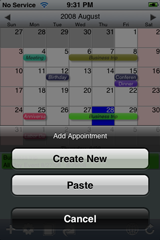 |
Create New Appointment The calendar that selected at the last edit will be set as the Default Calendar |
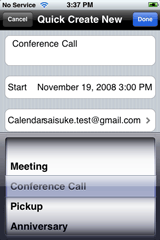 |
Quick Create New Appointment
One step create new Appointment Paste an Appointment |
Calendar Show/Hide select
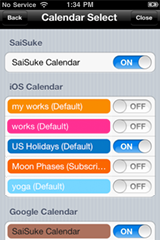 |
Show ON : the Calendar will be shown 'SaiSuke Calendar' is native Calendar that stored in iPhone. The other calendars will appear when Google Calendar synchronization is setup 'd |
Google Sync Setting
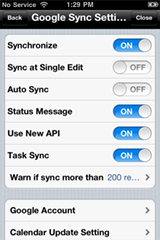 |
Setting for Google Calendar Synchronization
|
||||||||
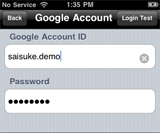 |
Touch Login Test button to check if ID and Password are correct. |
||||||||
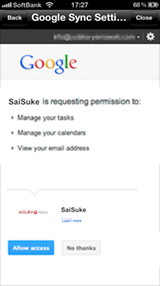 |
To use new Google API, set 'Use New API' on and setup your Google ID and password again. Then permit SaiSuke to access Google. The implementation for New API is relatively unmatured. If you prefer stable operation, please stay with current API. |
||||||||
|
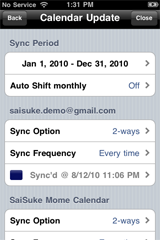
Specify the synchronization period Monthly Auto Shift ON/OFF setting
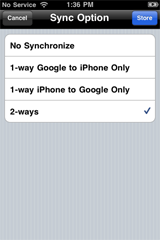
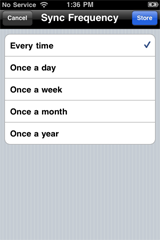
Execute the Synchronization when the Sync button touched When you change the synchronization period, all of the sync 'd time will be reset. The first synchronization will check all of the appointments in the period, which may take up to few minutes. Sync frequency can be selected as needed. |
Backup
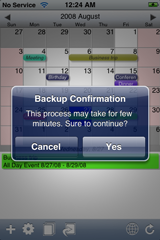 |
Appointments in 'SaiSuke Calendar' and History Words will be backup' d as a Google Calendar Each time when Backup is executed, new dedicate calendar will be created in Google Calendar. |
Recovery
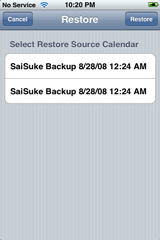 |
Restore Buck up data in the selected calendar Current Appointments in 'SaiSuke Calendar' |
General Setting
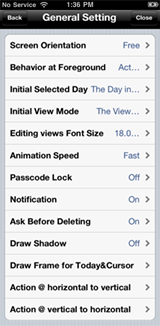 |
General Setting
|
Views Setting
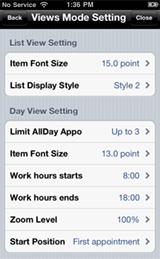 |
List View Setting
Day View Setting
|
||||||
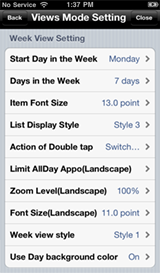 |
Week View Setting
|
||||||
|
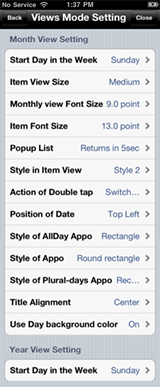
Month View Setting
Year View Setting
|



Input Setting
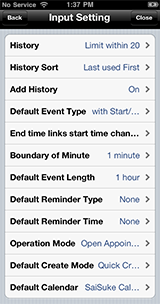 |
Input
|
Timezone select
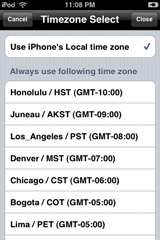 |
Select the timezone in SaiSuke. If you select 'Use iPhone's Local time zone', SaiSuke takes the local time zone in iPhone's setting |
Set/Remove Holiday
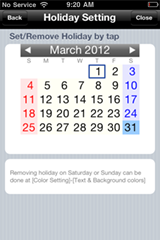 |
The date background color will be light red as well as weekend |
Edit History words
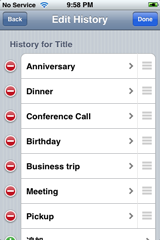 |
Words history at Title and Location in Appointment Edit
|
Edit Tool Bar Buttons
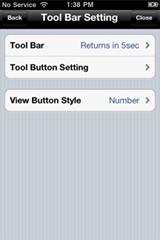 |
Tool Bar Setting
|
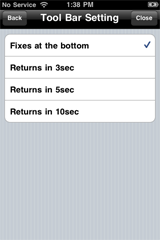 |
Tool bar position setting If you select "Fixes at the bottom", toolbar will be appeared at the bottom and fixed. Tool bar will be appeared at the top if you select others. |
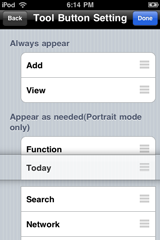 |
Edit Tool Bar buttons order. Buttons in 'Always appear' group remain in screen all the time. Buttons in 'Appear as needed' group be available when you tap This order is effectivewithr flexible Tool Bar mode |
 button.
Color Setting
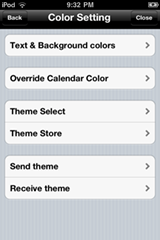 |
Color Setting
|
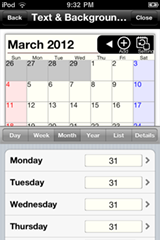 |
Setting Text and Background Color of various parts on Calendar |
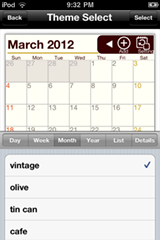 |
Setting theme |
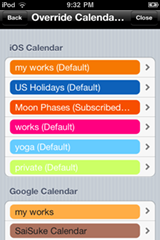 |
Setting for Calendar Color in SaiSuke. The selected color will override the original calendar color. This setting will not affect the color settings in Google Calendars or iOS Calendars. |
Maintenance
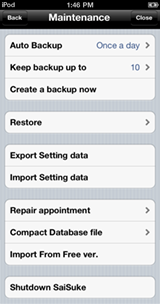 |
Menu for maintenance functions
Appointments that created with iOS Calendar are not in "SaiSukeAppo.db" file. Therefore you cannot backup/restore appointments in iOS Calendar
|
About SaiSuke
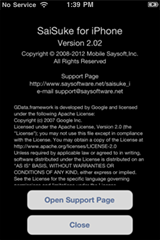 |
Show Version Information of SaiSuke You can open our support home page by pressing "Open Support Page" button |
Search Appointment
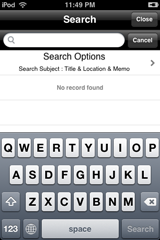 |
Search Appointments that has the keyword Input keyword and touch Search key then search result will be appeared. The search subject can be selectable in the Option page.
|
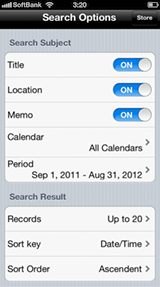 |
Search Options Search Subject Select Title, Location, Memo and Period for searching. Also you can select calendar for searching. Search Result Select maximum records(Up to 20, 40, 60, 100) |